1. Product Overview
1.1 Introduction
The LimX Tron2 data acquisition software is preinstalled on the external development expansion module. Connect your computer to the module and use your browser to:
-
View live data: Check camera feeds and joint states before you record.
-
Record ROS data: Configure, start, and stop recordings from ROS 1 or ROS 2. Recordings are saved locally on the module.
-
Manage recordings: Browse, inspect, download, and delete local recordings, or export ROS 2 MCAP recordings to LeRobot datasets.
1.2 Connect Your Computer
1.2.1 Option 1: Connect Directly to the Module
Use an Ethernet cable to connect your computer to any Ethernet port on the module.
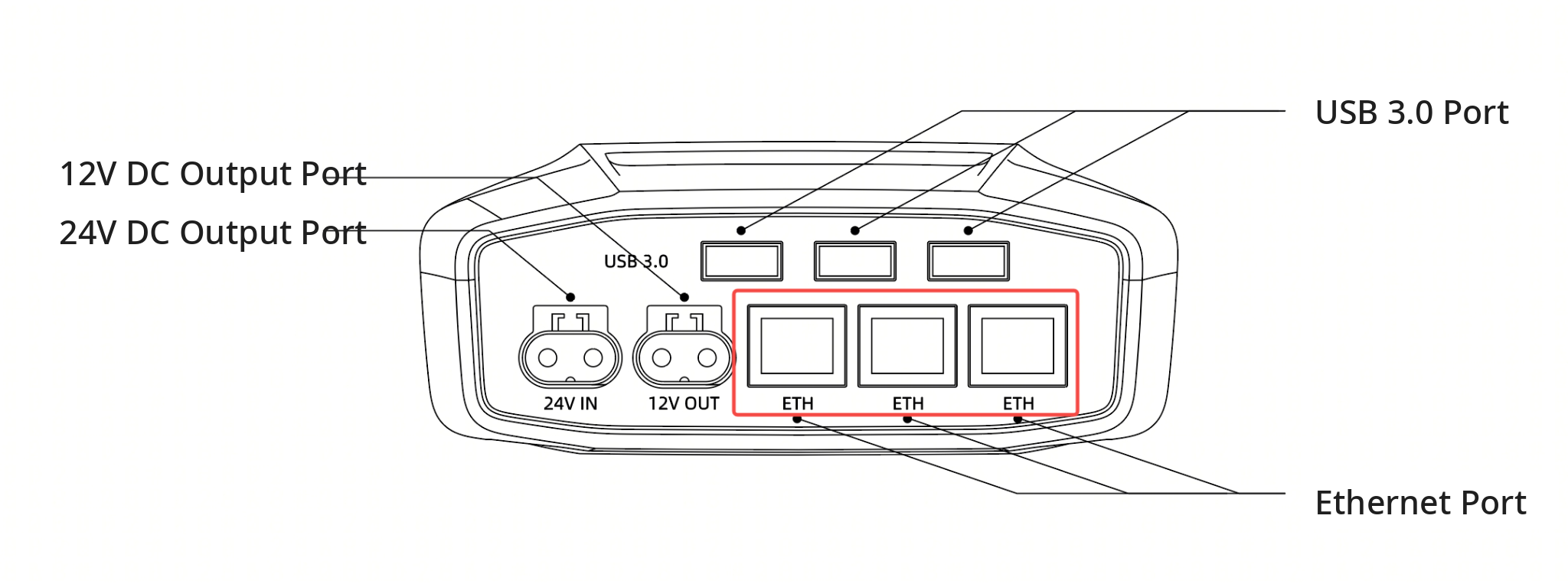
On your computer, open https://10.192.1.4/ in a browser.

1.2.2 Option 2: Connect Through Tron2
Use Tron2's built-in routing to reach the module over the robot's Wi-Fi:
-
Make sure an Ethernet cable connects the module to the robot.
-
Connect your computer to the robot's Wi-Fi.
-
On your computer, open https://10.192.1.4/ in a browser.
1.3 Open the Interface
Open https://10.192.1.4/ in your browser. If your installation uses a different address for the module, use that address with https:// instead.
Your browser may show an HTTPS certificate warning if the certificate does not match the IP address. A warning can also indicate another security issue. Before continuing, verify that the address belongs to the intended device and that you are on a trusted local network. If you have verified both and understand the warning, open the browser's advanced certificate details and use its option to continue. Labels such as Advanced or Details vary by browser. If you are unsure, stop and contact your administrator.
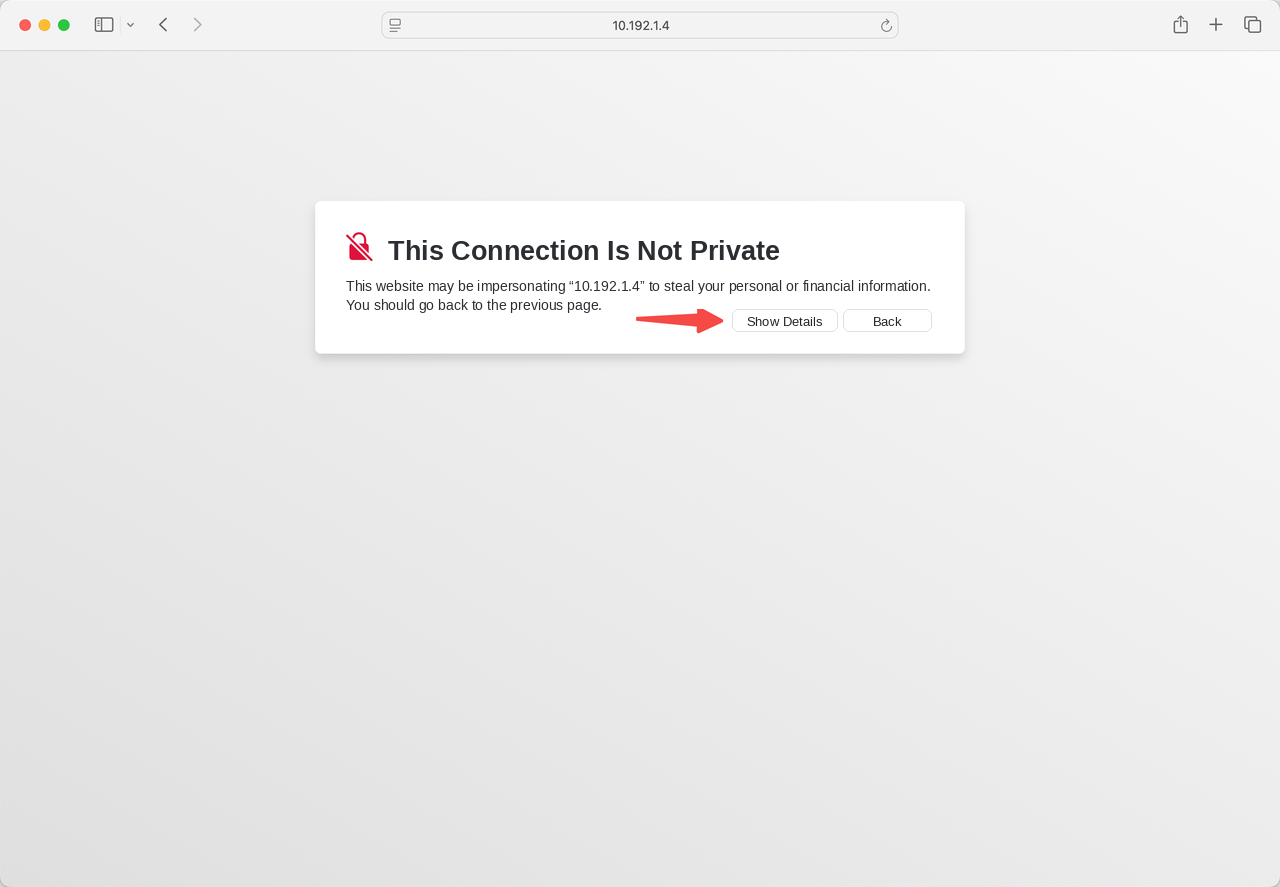
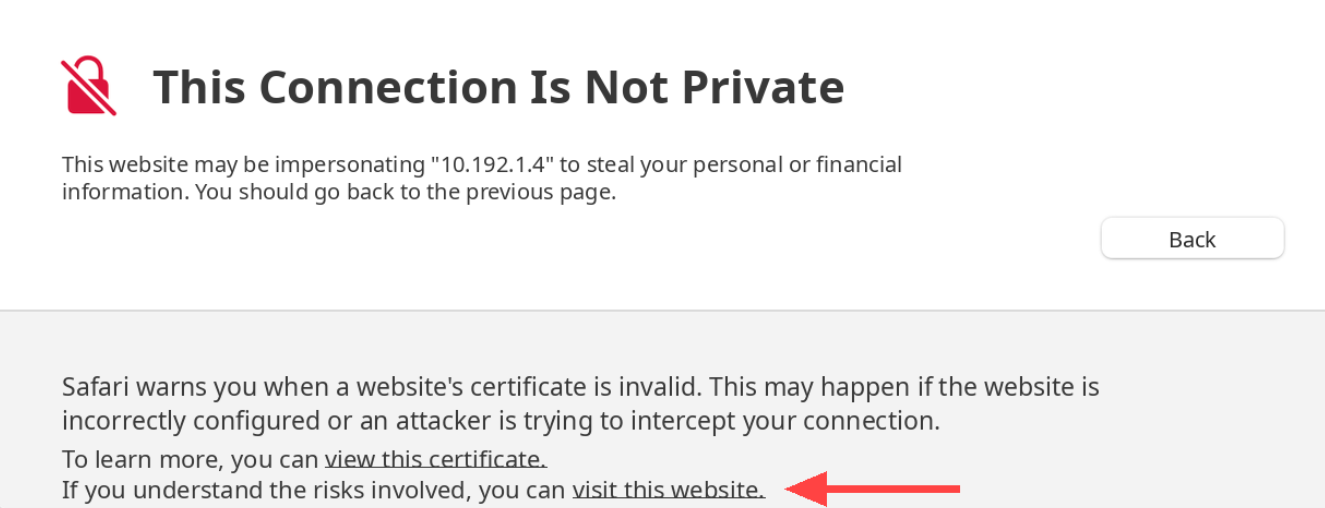
1.4 Find Your Recordings and Exports
-
Recordings folder: Recordings are saved on the module in
/home/guest/limx-agent/data/recordby default. CheckData Root Directoryon theDatapage for the path used by your installation: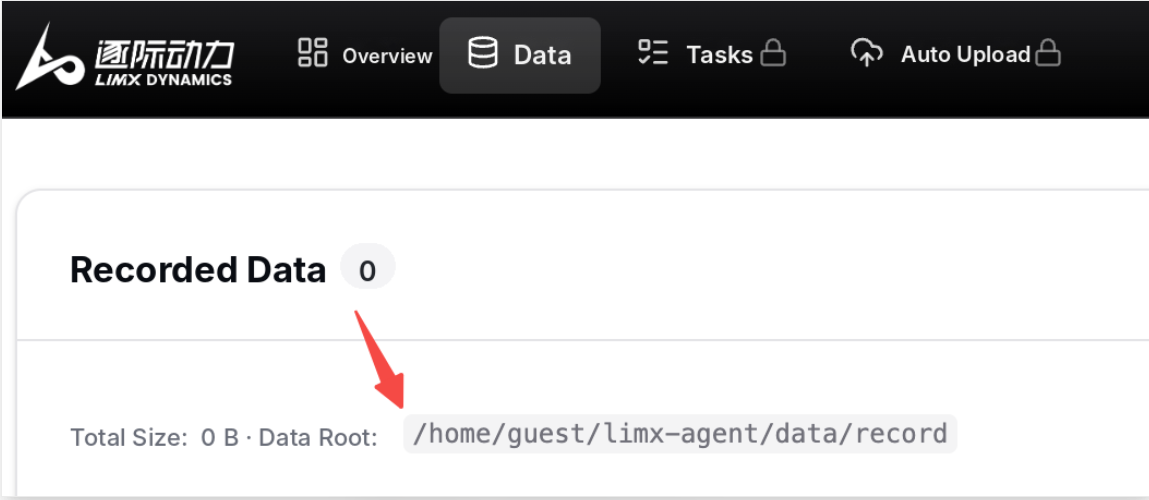
-
LeRobot export folder: Find exported datasets in
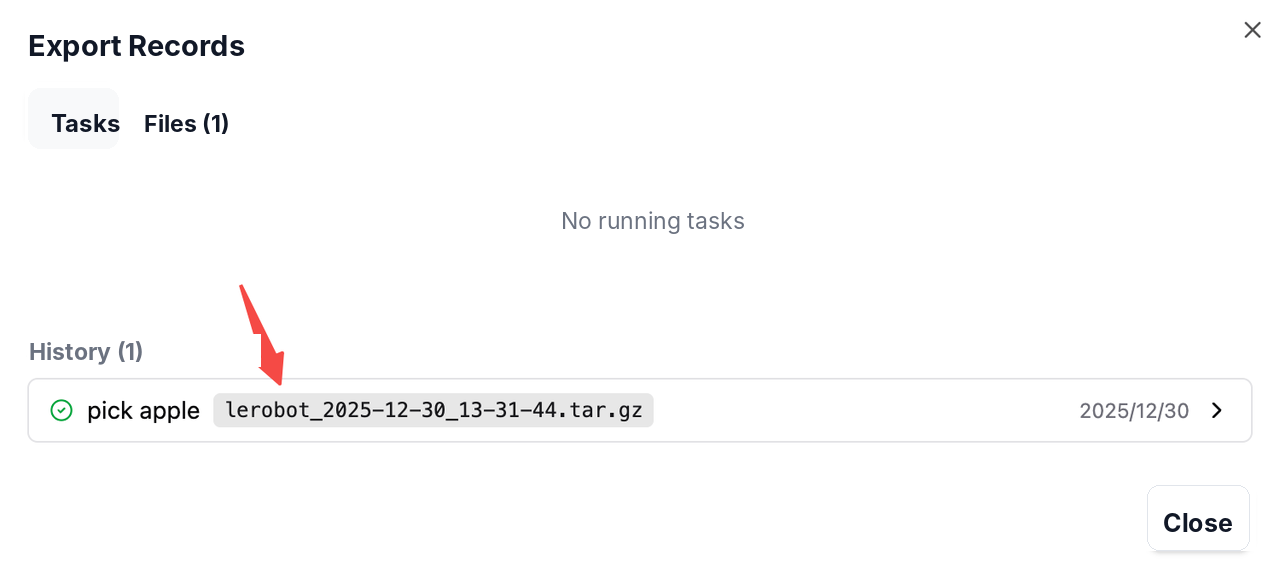
/home/guest/limx-agent/data/lerobot/on the module.
2. Overview Page
Use the Overview page to check live data, record a task, review today's recordings, and check available disk space.
2.1 Check Camera Feeds and Joint States
Before recording, check the camera feeds and joint states in Real-time Visualization.
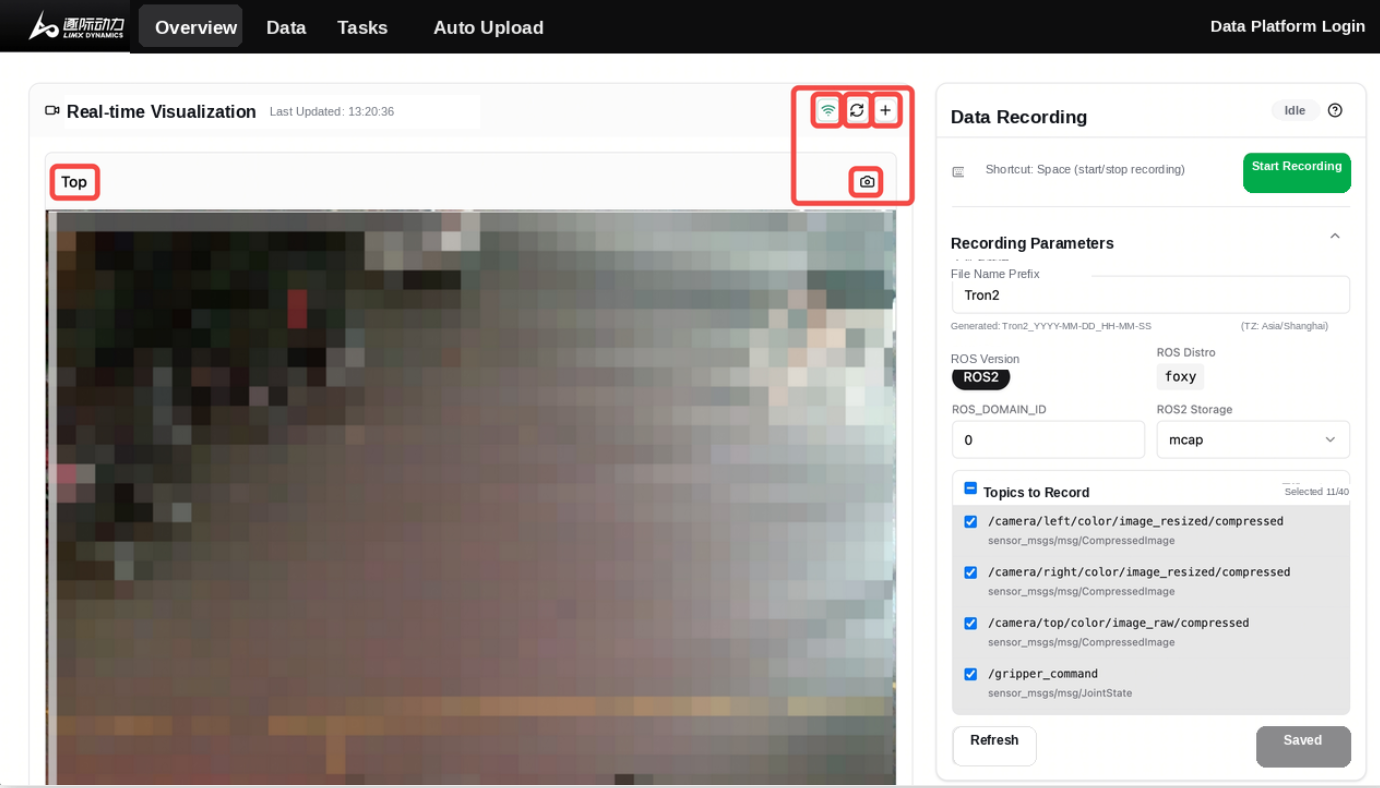
-
Camera feeds: Top (head), Left (left wrist), and Right (right wrist):
The software automatically selects three feeds from the available video topics.
-
Connection status:
-
Green wireless icon,
connected: The interface is connected to the local bridge and can receive topics and image frames. -
Gray wireless icon,
connecting/disconnected: The connection is still being established or is unavailable. If the icon stays gray, follow section 6, Troubleshooting.
-
-
Refresh: Reload the available topics and reconnect.
-
Add more cameras: Add a video topic manually if the feed you need is not selected automatically.
-
Download current image: Save a single frame to your computer.
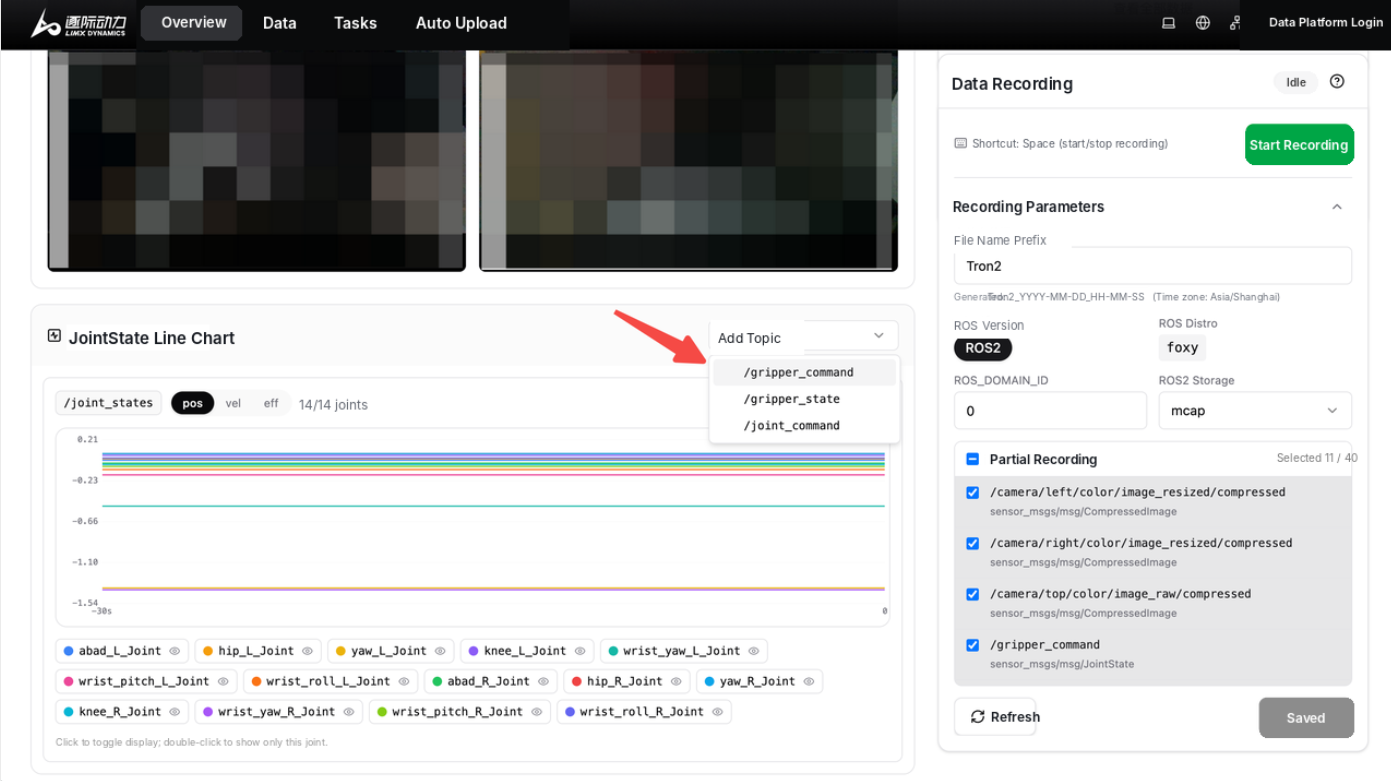
JointState Line Chart:
-
The software automatically selects a joint state topic, such as
/joint_states. -
Use
Add Topicto view additional joint state sources alongside it.
2.2 Configure and Record a Task
Use the Data Recording panel on the right to set up and control each recording.
Set up the recording:
1. File Name Prefix: Enter a short task name so you can identify the recording later. The software adds a timestamp automatically.
2. ROS Version and ROS Distro: Check the ROS version and distribution used by the recording software.
3. ROS connection settings: For ROS 2, set ROS_DOMAIN_ID to match the robot you want to record. For ROS 1, set ROS_MASTER_URI to the address of that robot's ROS master.
4. ROS2 Storage: For ROS 2, select the recording format. The default is MCAP, shown as mcap in the interface.
5. Topic selection:
- All topics: Record all available topics when you need a complete set.
- Selected topics: Use
Partial Recordingto choose only the topics you need and reduce recording size. Select at least one topic. UseRefreshif you need to update the topic list.
6. Save your settings: If the panel shows Unsaved, click Save. Confirm that it shows Saved before you start recording.
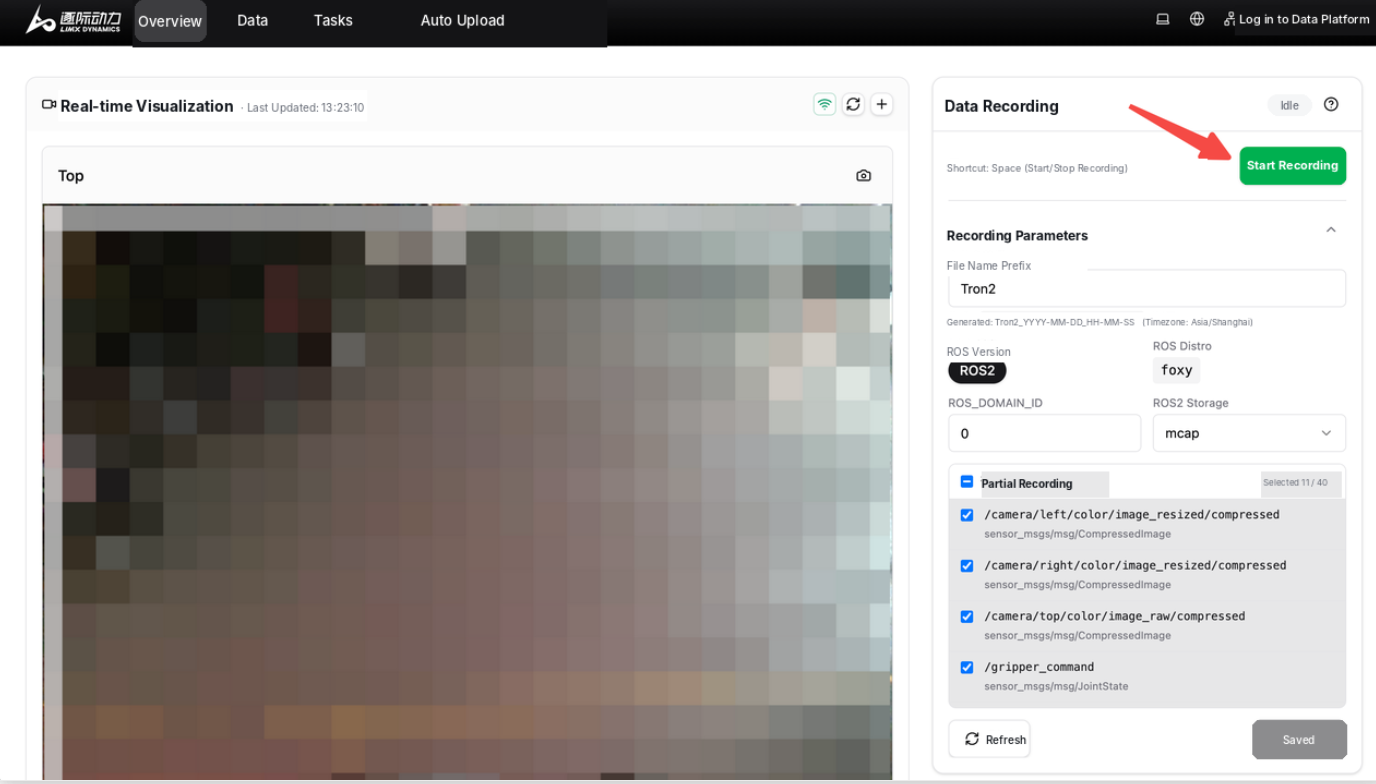 |
Start and stop a recording: 1. Click Start Recording to begin, or Stop Recording to finish. You can also press the Space bar to start or stop when focus is outside an input field. |
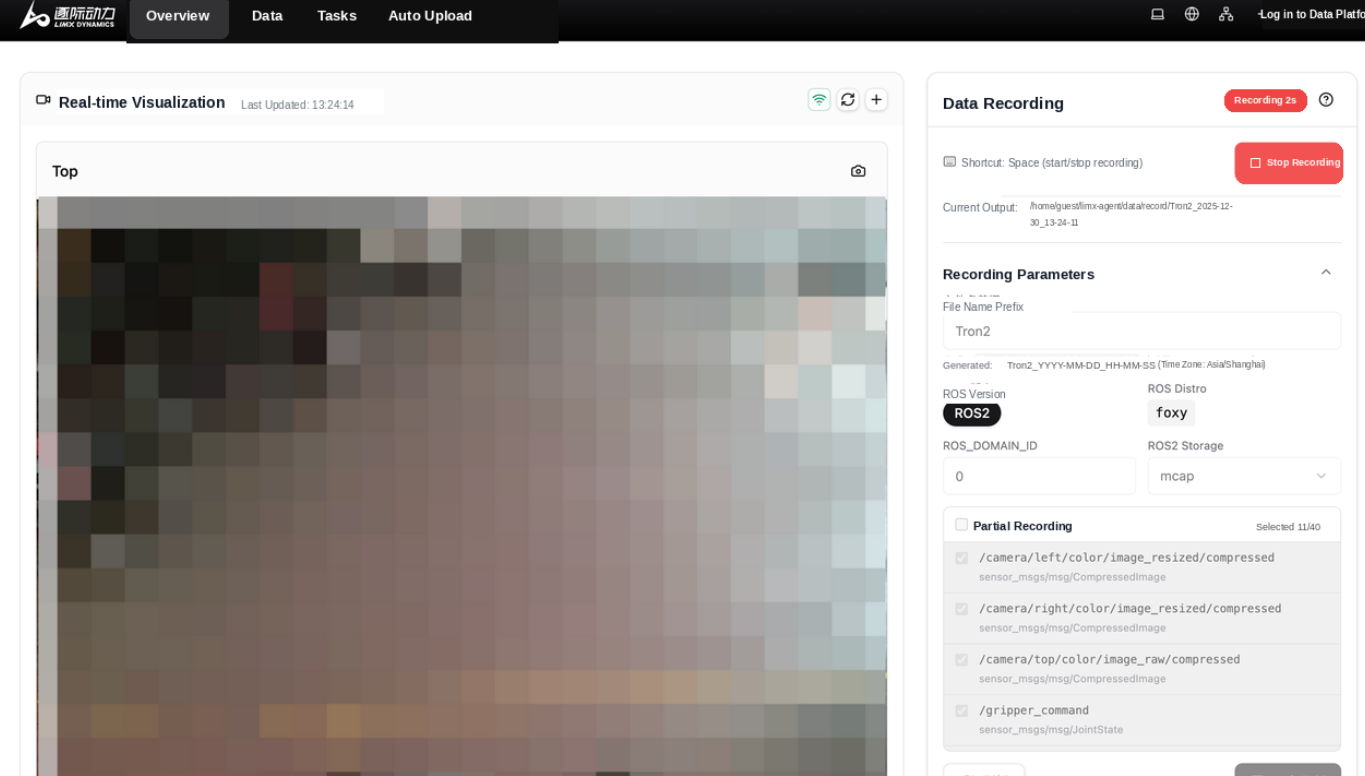 |
2. After you click Start Recording, check the elapsed time: Output path: Check this path to see where the current recording is being saved. |
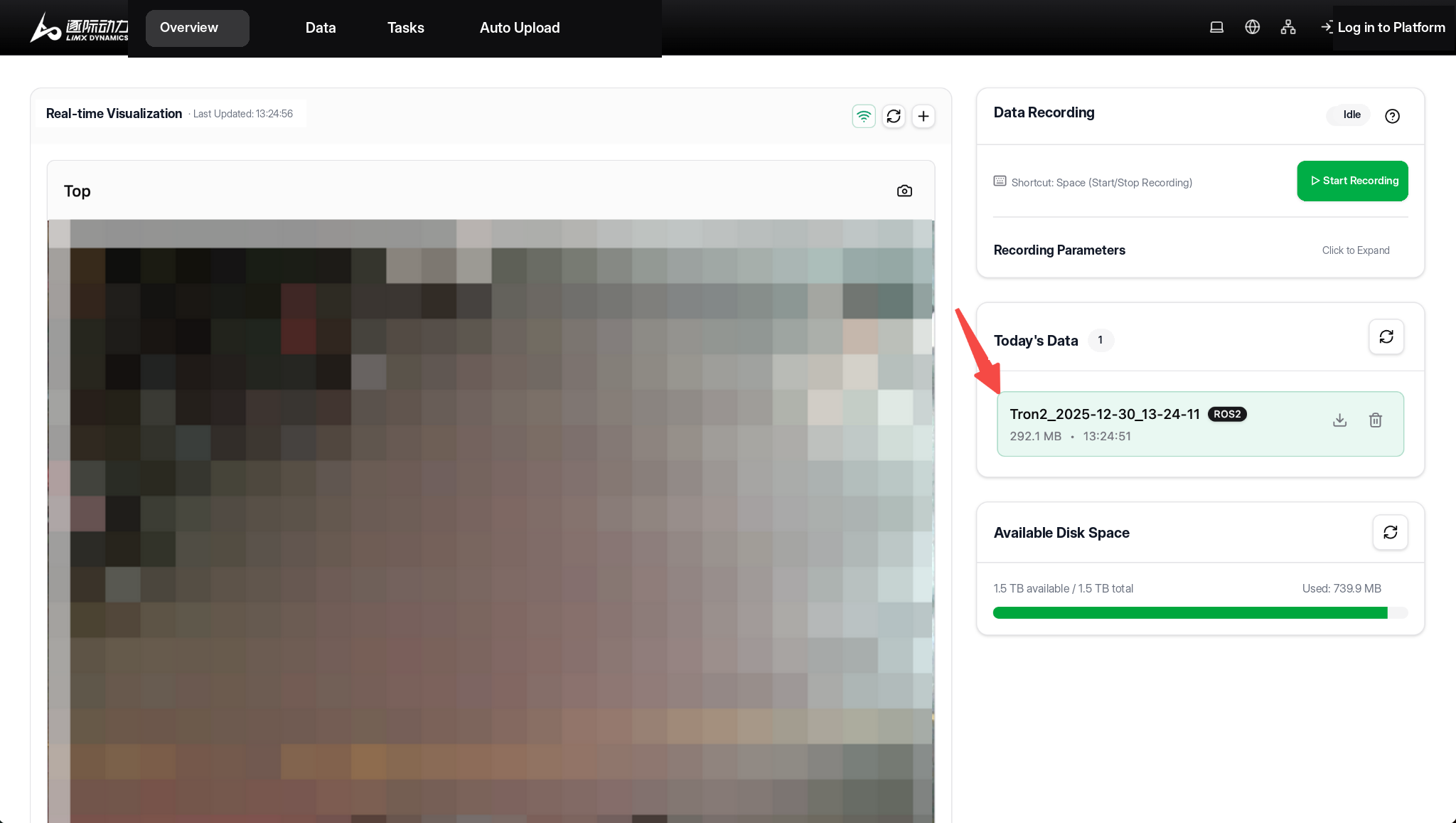 |
3. Click Stop Recording when the task is complete: When you stop recording, the list refreshes automatically. Look for the new recording highlighted in light green. |
2.3 Today's Data
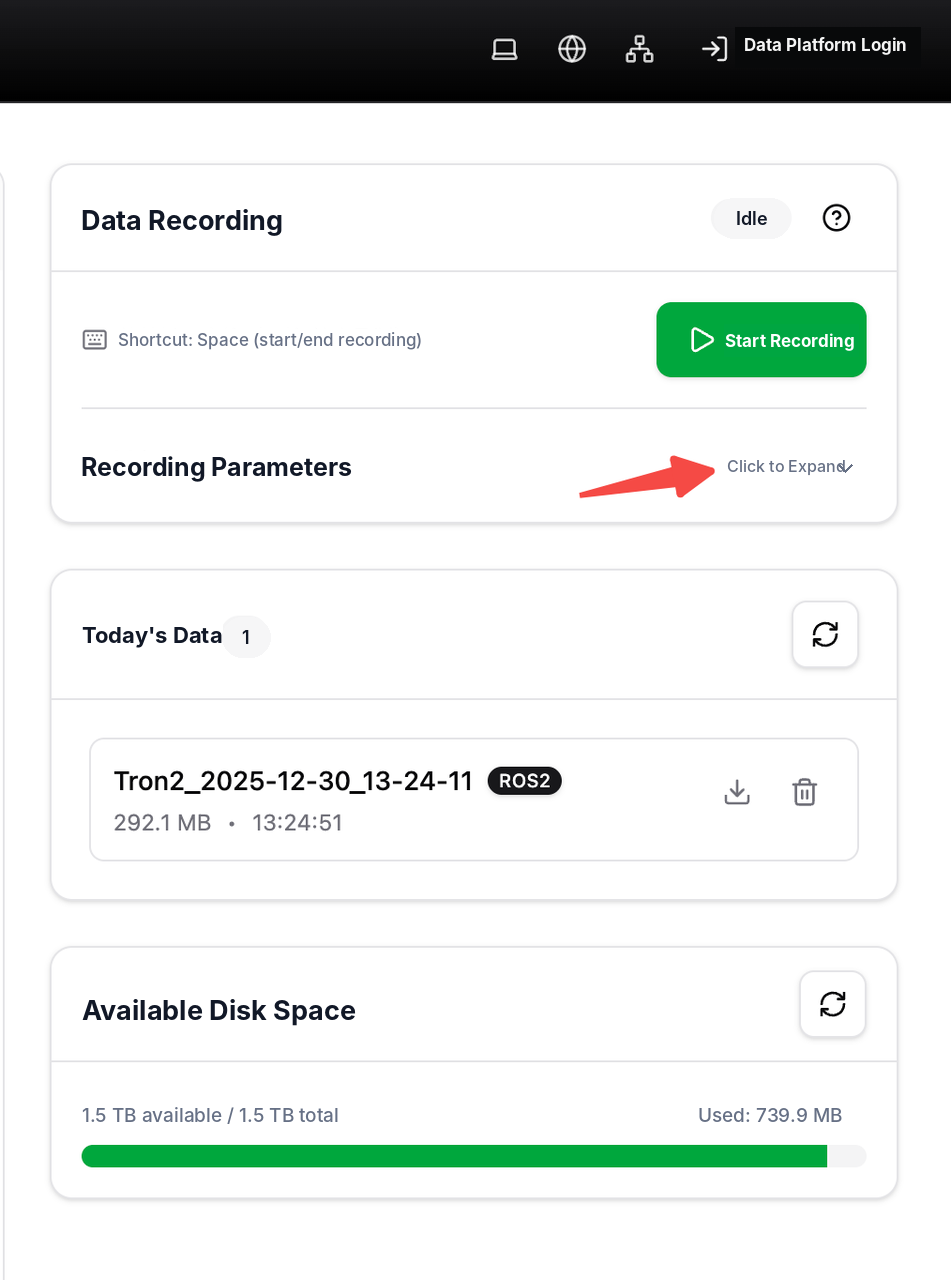 |
The Today's Data card lists up to 10 recordings added today:
|
2.4 Check Available Disk Space
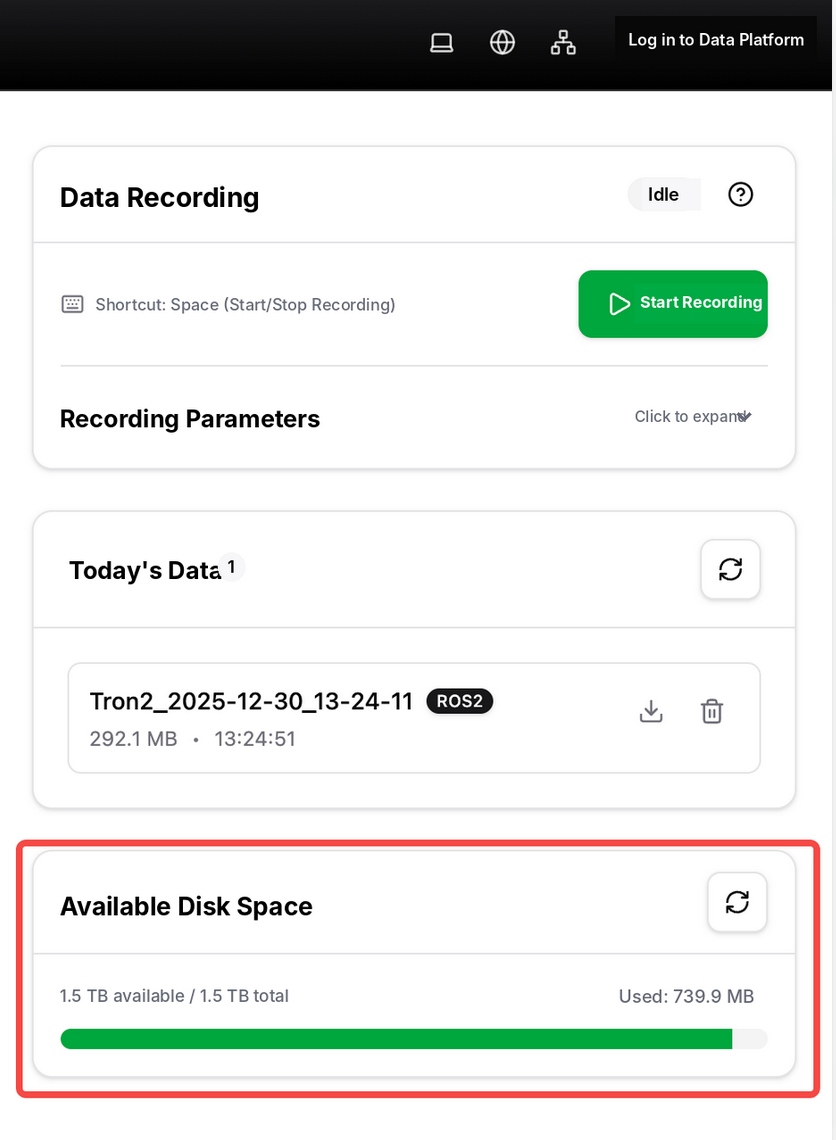 |
Check Available Disk Space before recording. It shows free space on the disk that holds the recordings folder:
|
3. Data Page
Use the Data page to find local recordings, inspect metadata, download recordings to your computer, or delete them individually or in batches. You can also export ROS 2 MCAP recordings to a LeRobot dataset.
3.1 Find and Select Recordings
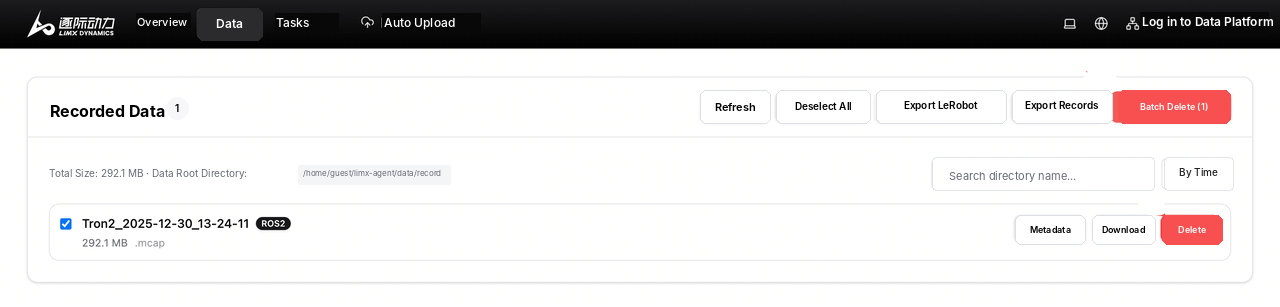
Use the controls above the Recorded Data list to find and select recordings:
-
Recording count: Check the badge for the number of entries.
-
Refresh: Rescan the local recordings folder to update the list.
-
Selection: Select recordings for export or batch deletion. Use the select-all control to select the full list, or
Deselect Allto clear your selection. -
Total Size: Check how much disk space the recordings use.
-
Data Root Directory: Find the recordings folder on the module.
-
Search: Filter recordings by folder or file name.
-
Sort: Choose
By Timeto sort chronologically, or sort by name or size.
Check each entry's ROS type to identify its storage format:
-
ROS 2: Typically a folder containing
.mcapfiles andmetadata.yaml. -
ROS 1: Typically a single
.bagfile.
3.2 Inspect Recording Metadata
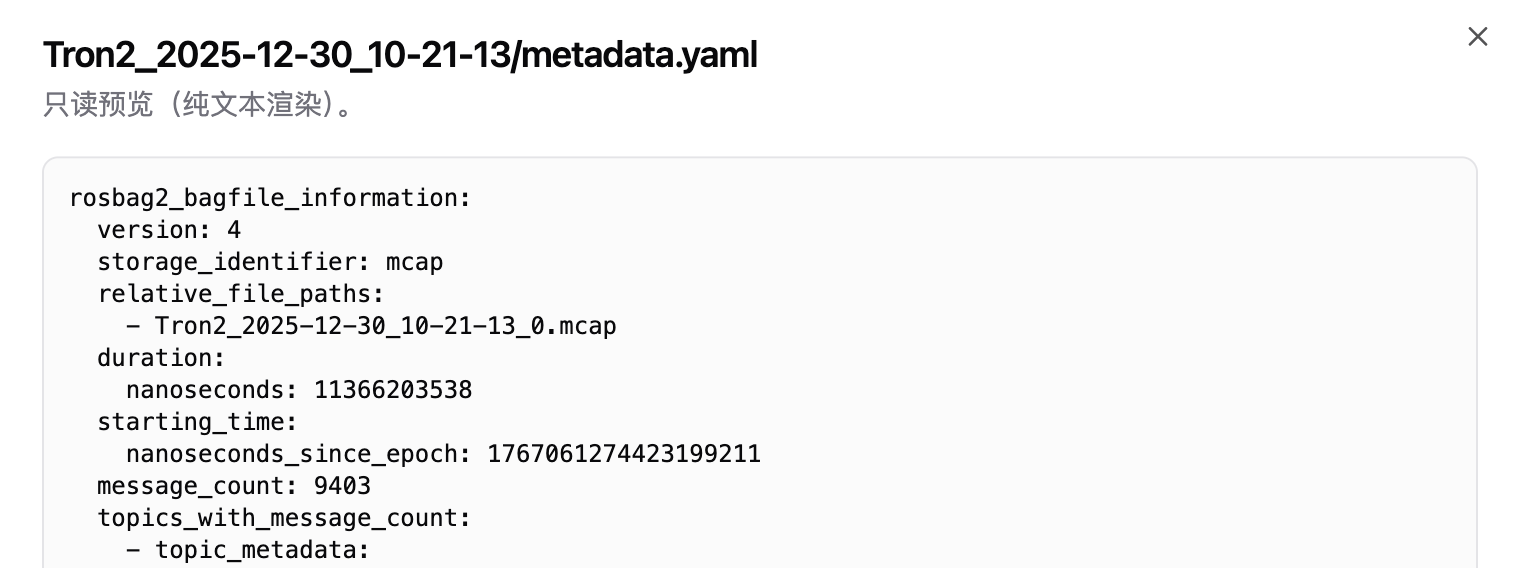
Click Metadata on the right of an entry to inspect its details:
-
ROS 2: View a read-only preview of
<directory>/metadata.yamlfrom the recording folder. -
ROS 1: View basic file information. A
.bagfile does not have a separatemetadata.yamlfile; it stores its metadata within the bag.
Use these details to check:
-
Recording start and end times, topics, and message statistics for ROS 2.
-
File size and modification time for ROS 1 and ROS 2.
3.3 Download Recordings
Click Download next to a recording to save it to your computer:
-
ROS 1 (.bag): Download the bag file directly.
-
ROS 2 (folder): The software packages the folder as a
.zipfile for download.

3.4 Delete Recordings
Deleting a recording permanently removes it from the module. Back up any recordings you need before deleting them.
-
Delete one recording: Click
Deleteon the right of the entry. -
Delete multiple recordings: Select the entries, then click
Batch Deletein the upper right. The number in parentheses shows how many recordings are selected, for example,Batch Delete (1).
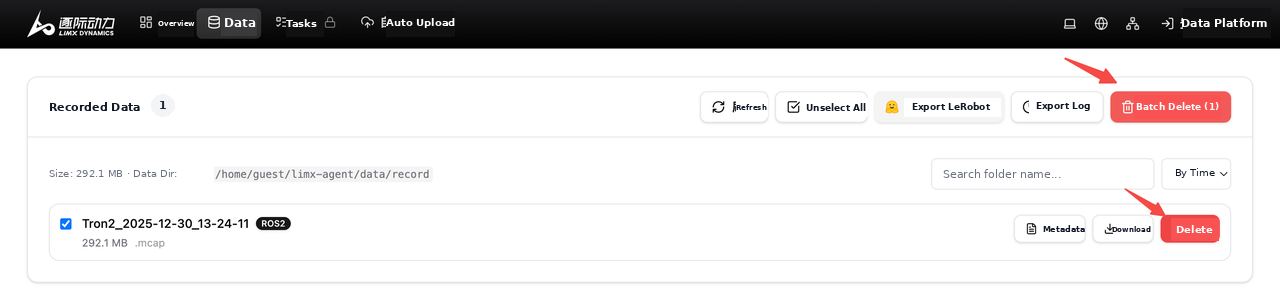
Download or copy them directly from the disk. Verify your copies before deleting the originals.3.5 Export a LeRobot Dataset
Export ROS 2 MCAP recordings as a LeRobot dataset for local training or evaluation.
To export recordings:
1. Select the recordings: Choose one or more ROS 2 recording folders containing MCAP files. Export is not available for ROS 1 .bag files.
2. Click Export LeRobot.
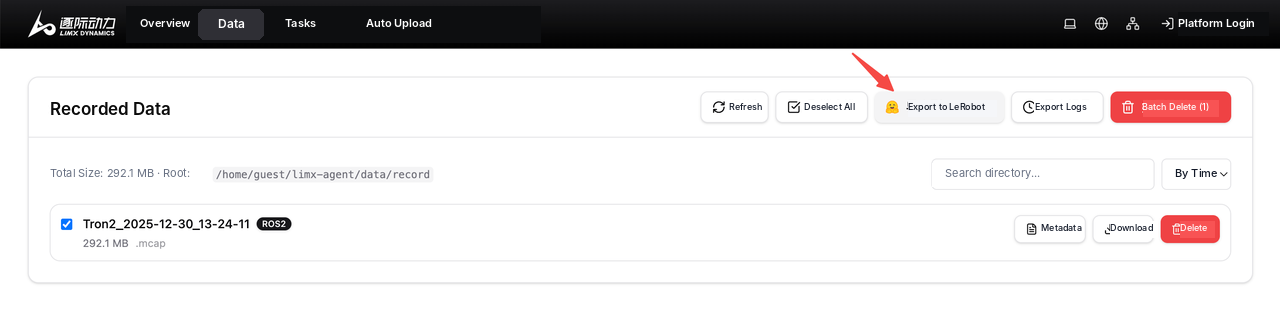
3. In the Export to LeRobot Dataset dialog, enter a Task Description:
Describe the task in a short, specific instruction, such as "Pick up the apple." Training pipelines for vision-language models (VLMs) or vision-language-action models (VLAs) can use this description as the task instruction.
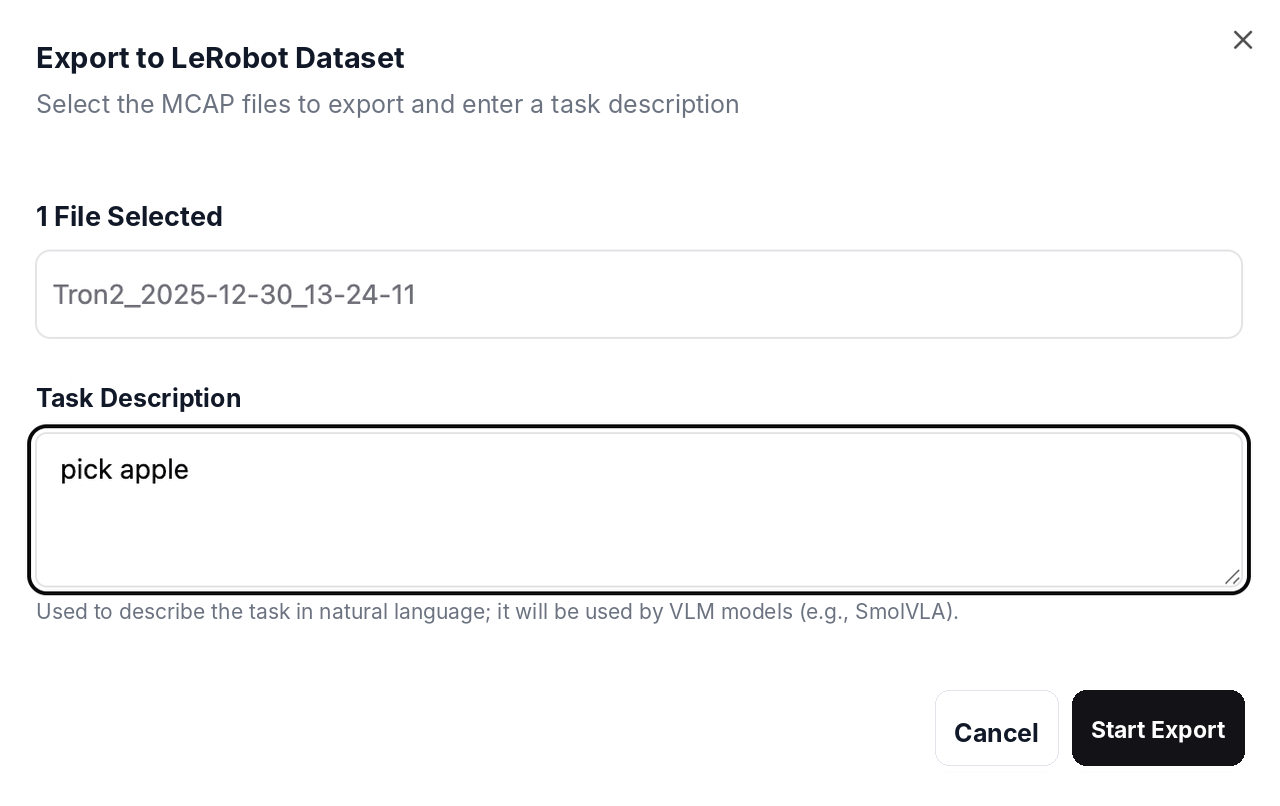
4. Click Start Export.
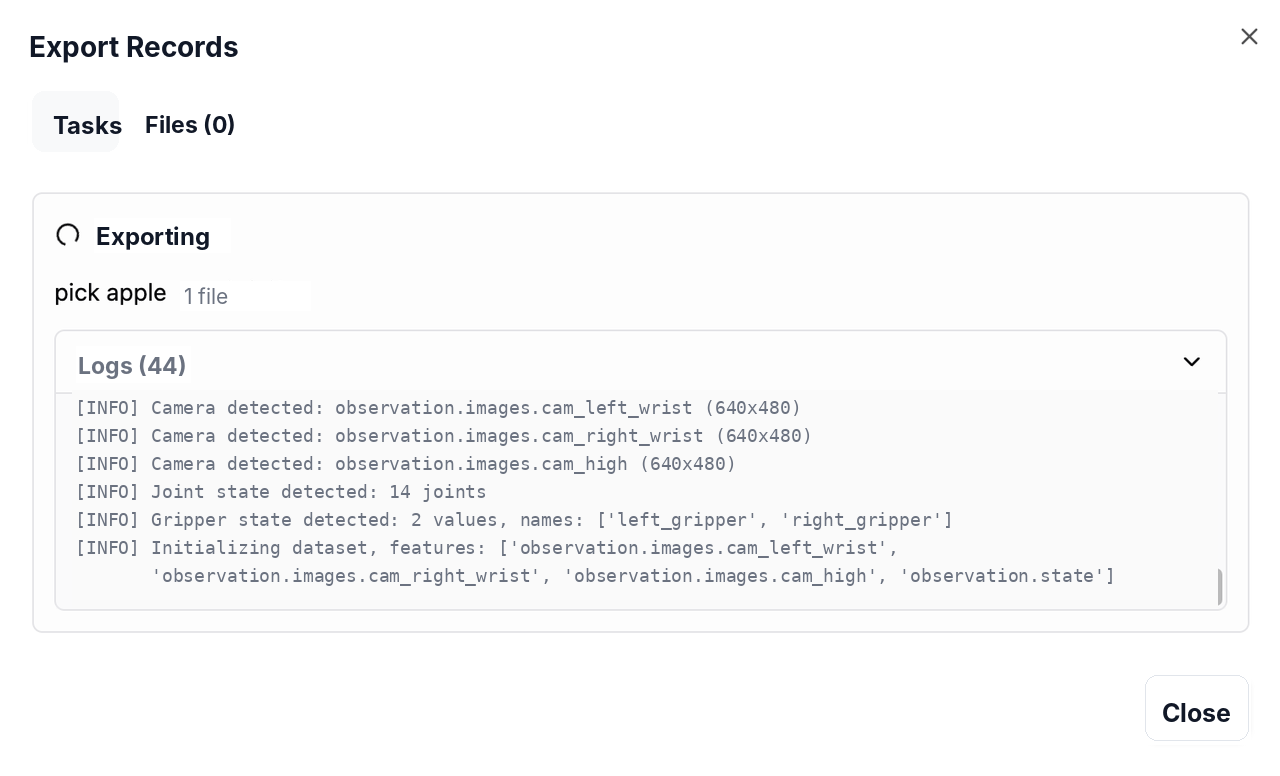
5. Open Export Records to check progress and retrieve the dataset:
- Check whether the export is running, has completed, or has failed.
- Review the logs for progress or error details.
- Browse export history and download completed exports. Delete exported files you no longer need.

meta/stats.json omits image statistics to reduce CPU overhead. Before training, use your chosen training toolchain to compute any statistics it requires. Training with openpi 0.5 requires image statistics; compute them before using the exported dataset.4. Change the Color Theme
The interface follows your computer's light or dark theme by default. Click the theme icon to change it.

5. Switch Between Chinese and English
The interface uses your browser's language preference by default. Click the globe icon to choose Chinese or English.

6. Troubleshooting
| No. | Problem | Possible Causes | What to Do |
|---|---|---|---|
| 1 | No camera image, or the connection stays unavailable | Network or bridge connection issue; camera topics are not publishing | Check the following in order:
|
| 2 | Start Recording does not respond or shows an error |
|
Check the following in order:
|
| 3 | Settings will not save, or a permission error appears (EACCES/EPERM) | The container may not have write access to the mounted folder on the module | Ask an administrator to check the mounted folder's ownership and permissions on the module, grant the service the required write access, and restart it. Then try saving your settings again. |
| 4 | Recording fails or stops when disk space is low | The recording disk has too little free space | Free up space before recording again:
|